
Audiototext

iPhone recording guide

Quick guide: How do I convert audio to text on my iPhone?

Asking How do I convert audio to text on my iPhone? The first choice is whether you want to dictate new words or transcribe audio you already recorded. This guide walks through both paths and the checks that make the resulting text useful.

Free to start · no signup
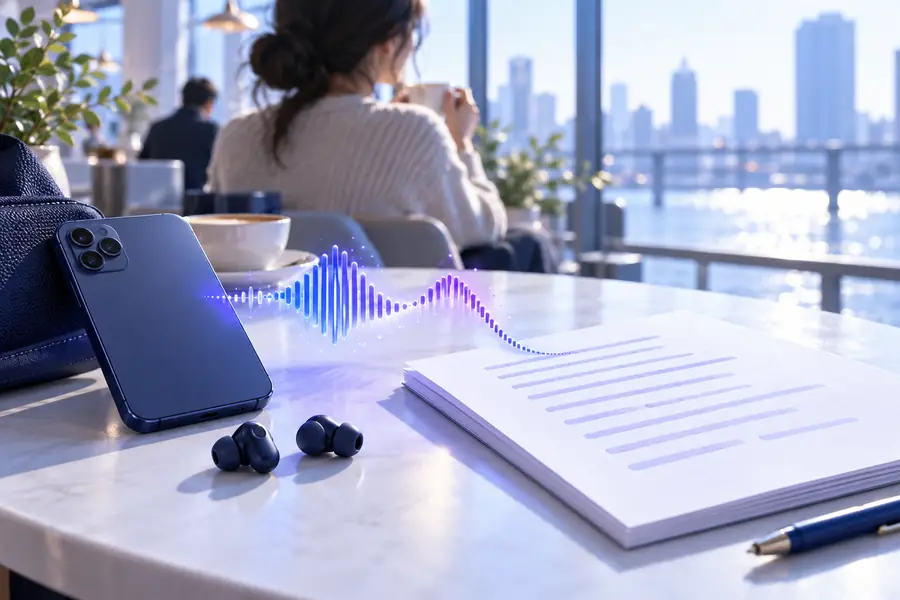
Audiototext audio-to-text illustration

What this scenario must deliver

Aim for text you can read, correct, and reuse—not just a stream of guessed words. The comparison table below helps you choose the right starting method.

  1. 1

    Identify your starting audio

    For words you have not spoken yet, open a text field on your iPhone and use keyboard dictation. For an existing Voice Memos recording or another saved clip, look for a transcription workflow that accepts that audio.

  2. 2

    Make the recording available

    If you are using a separate transcription service, locate the recording in Voice Memos or Files and use your iPhone’s share options where applicable. Check what the destination accepts before moving a long or sensitive clip.

  3. 3

    Review the resulting text

    Play the audio while checking names, dates, numbers, and sentences that do not make sense. Add paragraph breaks and speaker names yourself when the recording does not make them unambiguous.

Each item in your iPhone-to-text workflow

The source, the conversion method, and the final review are separate decisions. These related guides cover the parts that may need a different approach.

The quality bar for a usable transcript

Neither dictation nor a transcription service can reliably recover words that the microphone did not capture. Treat the first result as a draft.

It cannot restore inaudible speech

Traffic, wind, overlapping voices, and a distant microphone can hide words in the original recording. A fluent-looking sentence may still be wrong.

Workaround

Replay uncertain passages and mark anything you cannot verify instead of filling gaps by guesswork.

It cannot guarantee correct names

Uncommon names, addresses, technical terms, and spoken numbers are easy to mishear, especially without context.

Workaround

Check those details against the audio and a trusted source before sending or publishing the text.

It cannot decide who may access your recording

Sending a clip to an external service is different from typing notes locally. The right choice depends on the recording and the service’s terms.

Workaround

Review the destination’s privacy information and avoid uploading audio you are not authorized to share.

Common rework: dictation versus saved audio

Choosing the wrong input method creates avoidable rework. Use this table to match the method to what is actually on your iPhone.

iPhone keyboard dictation
Saved-recording transcription

Best starting point

iPhone keyboard dictation

You are about to speak new notes into a text field.

Saved-recording transcription

You already have a meeting, interview, or voice memo to turn into text.

Audio source

iPhone keyboard dictation

Speech captured while dictation is active.

Saved-recording transcription

A recording you can locate and provide to a compatible workflow.

Typical result

iPhone keyboard dictation

Words appear in the app where you are typing.

Saved-recording transcription

A transcript draft that you can inspect and edit.

Existing voice memo

iPhone keyboard dictation

Not a direct way to import and transcribe the saved memo.

Saved-recording transcription

Potentially suitable if the chosen service accepts the recording.

Main correction task

iPhone keyboard dictation

Fix errors as you speak or immediately afterward.

Saved-recording transcription

Compare the draft with the original audio, especially at unclear moments.

Multiple speakers

iPhone keyboard dictation

Not designed to label participants in a saved conversation.

Saved-recording transcription

Speaker labels may still need manual verification or addition.

Before sharing

iPhone keyboard dictation

Proofread the text in its destination app.

Saved-recording transcription

Check accuracy and whether sharing the recording was appropriate.

Before and after: a voice memo becomes editable copy

The goal is not perfect punctuation on the first pass. It is a draft that lets you find important statements and correct them against the recording.

Illustration representing an iPhone audio recording before transcription Recording to review
Illustration representing text prepared from recorded speech Text to verify
Illustrative comparison, not a guaranteed output. For example, a memo saying “Call Maya Thursday at three” is only useful as text once you verify the name, day, and time against the audio.

Take the next step with your recording

Turn a saved conversation into a working draft

If your audio is already on your iPhone, check whether the destination accepts your recording and review its handling of uploaded files. After transcription, listen back to confirm key details before treating the text as a reliable record.

Transcribe my audio
  • Start with the recording you actually need in text
  • Check names, numbers, and unclear passages
  • Keep the original audio for verification

Scenario FAQ

For new speech, tap a text field and use the microphone on the iPhone keyboard to dictate. For audio you already recorded, locate the clip and use a compatible transcription method; then compare the resulting text with the recording.

Keyboard dictation is meant to capture speech while you speak, not import a saved memo. For a recording you have already made, use a transcription workflow that accepts that clip, if one is available to you.

Check the app where you made or received it, such as Voice Memos, Messages, or Files. Its share options may let you move or save the recording, but the available choices depend on the app and the clip.

Speech recognition can mistake similar-sounding words, particularly when the audio is noisy or a name is unfamiliar. Replay those moments and correct the text from what you can actually hear; do not assume a polished sentence is accurate.

Only if you are permitted to share the recording and are comfortable with the service’s privacy terms. Check how the destination handles audio before uploading sensitive conversations, and choose another method when those conditions are not met.

Transcribe audio
Transcribe audio