

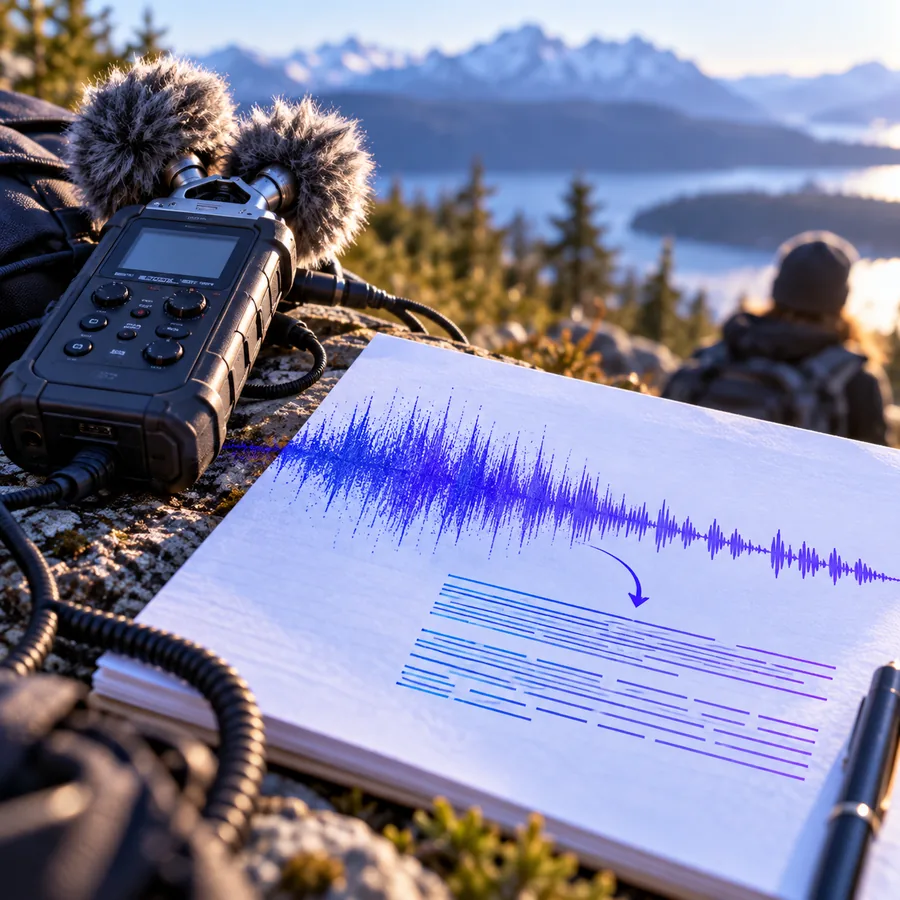

A Faster Starting Point
Move from a recording to a transcription workflow without writing everything out by hand.
Open Supavocal's audio transcription page; sign in to create a task.
Supavocal accepts MP3, WAV and M4A audio. Files must be at most 25 MB and one hour long. Google sign-in and sufficient credits are required; new accounts receive 1,000 credits, about one minute of audio.
Open Supavocal transcriptionThis guide does not upload or pass a request. In Supavocal, choose a file and create a task; the result can be copied as text.
Explore a recording guide
A straightforward way to start turning spoken recordings into written text for work, study, and creative projects.
Move from a recording to a transcription workflow without writing everything out by hand.
Use a transcript as a starting draft, then check names, specialist terms, and important details.
Check the destination tool’s supported file formats before you upload your recording.
Prepare notes from discussions, interviews, and other recordings with more than one voice.
Choose a guide here, then visit Supavocal separately to select your audio and create a task.
Review the tool’s privacy terms before sharing confidential or sensitive recordings.
Cut through the guide-to-tool handoff: sign in with Google, choose an audio file, create a credit-billed transcription task, then copy the transcript after processing.
At Supavocal, sign in with Google and choose an MP3, WAV or M4A recording within 25 MB and one hour.
Check the credit estimate and create the transcription task with sufficient credits.
Read the finished text and check names and unclear speech against the recording. There is no inline transcript editor.
Use Copy transcript to take the text into your own document. This tool does not export a transcript file.
Discover ways to put written transcripts to work across different recordings and projects.
Turn business meetings and conference calls into notes you can search and share.
Give interviews and podcast conversations a useful written starting point.
Make lecture and course recordings easier to review in written form.
Use voice memos and brainstorming recordings as material for written work.
Find answers to common questions about audio to text conversion.
Audio to text conversion turns spoken words in a recording into written text. You can review the result and use it for notes, reference, or a writing project.
Open the Supavocal link above. On its speech-to-text page, sign in with Google, select a supported audio file, check the credit estimate and create a task with sufficient credits. This guide sends neither a prompt nor a file.
This guide and the linked Supavocal tool open in a browser. A Google sign-in and sufficient credits are required to create a transcription task.
You can read this guide without an account. To submit a transcription task at Supavocal, sign in with Google and have sufficient credits.
Supavocal lists MP3, WAV, FLAC, OGG and M4A audio in its upload dialog. Check file compatibility there before creating a task.
Supavocal limits audio to 25 MB and no more than one hour (and at least half a second). Split or compress a longer recording before submitting.
Supavocal provides a Copy transcript button. Paste the copied text into your own document to save it; the tool does not provide a transcript file download.
Supavocal's speech-to-text upload accepts audio, not a general video file. Extract audio from a video first, then check that the audio meets the format, size and duration limits.
Not automatically in Supavocal's speech-to-text tool. It does not offer speaker diarization; identify speakers yourself by listening to the original recording.
Supavocal shows the transcript with a copy button, not an inline text editor. Paste the text into your own editor to correct names and technical terms against the original audio.
You can read this guide on a phone. At Supavocal, use a compatible browser to choose a saved audio file; check the upload control on your device.
Speech recognition analyzes patterns in recorded sound to produce a draft of the spoken words.
Results vary with recording quality, pronunciation, overlapping speech, and subject matter. Review important passages yourself.
A clearer recording generally helps. Listen back and verify any words that noise may have obscured.
Timing depends on the recording and the tool’s current processing conditions.
Audiototext helps you explore audio-to-text uses and continue to a transcription tool.
A transcript can help you revisit what was said and draft meeting notes or follow-up items.
Written lecture notes can make it easier to find and revisit a particular topic. Follow your institution’s recording rules.
Yes. A transcript can serve as source material for an article, summary, or set of notes.
Yes. Confirm names, figures, quotations, and context against the original recording.
Read the destination tool’s privacy and data-handling terms before uploading confidential material.
Read a recording guide above or follow the Supavocal link to its separate speech-to-text page. This site does not accept uploads or transcription instructions.
Bring your recording to a transcription workflow and turn spoken ideas into text you can put to use.
Open Supavocal